
Create a New Website
Create a new WordPress website in Studio without preparing a backup or moving an existing website. Studio gives the site a temporary address so you can build and review it before connecting your domain.
Create your website
- On an empty Sites dashboard, choose Create a new site. You can also click Add site in the top navigation.
- Select New WordPress site at the top of the dialog.
- Enter a Site Name with at least five characters. Review the site settings and temporary domain details.
- Click Create Site and follow the live progress in the Sites table.
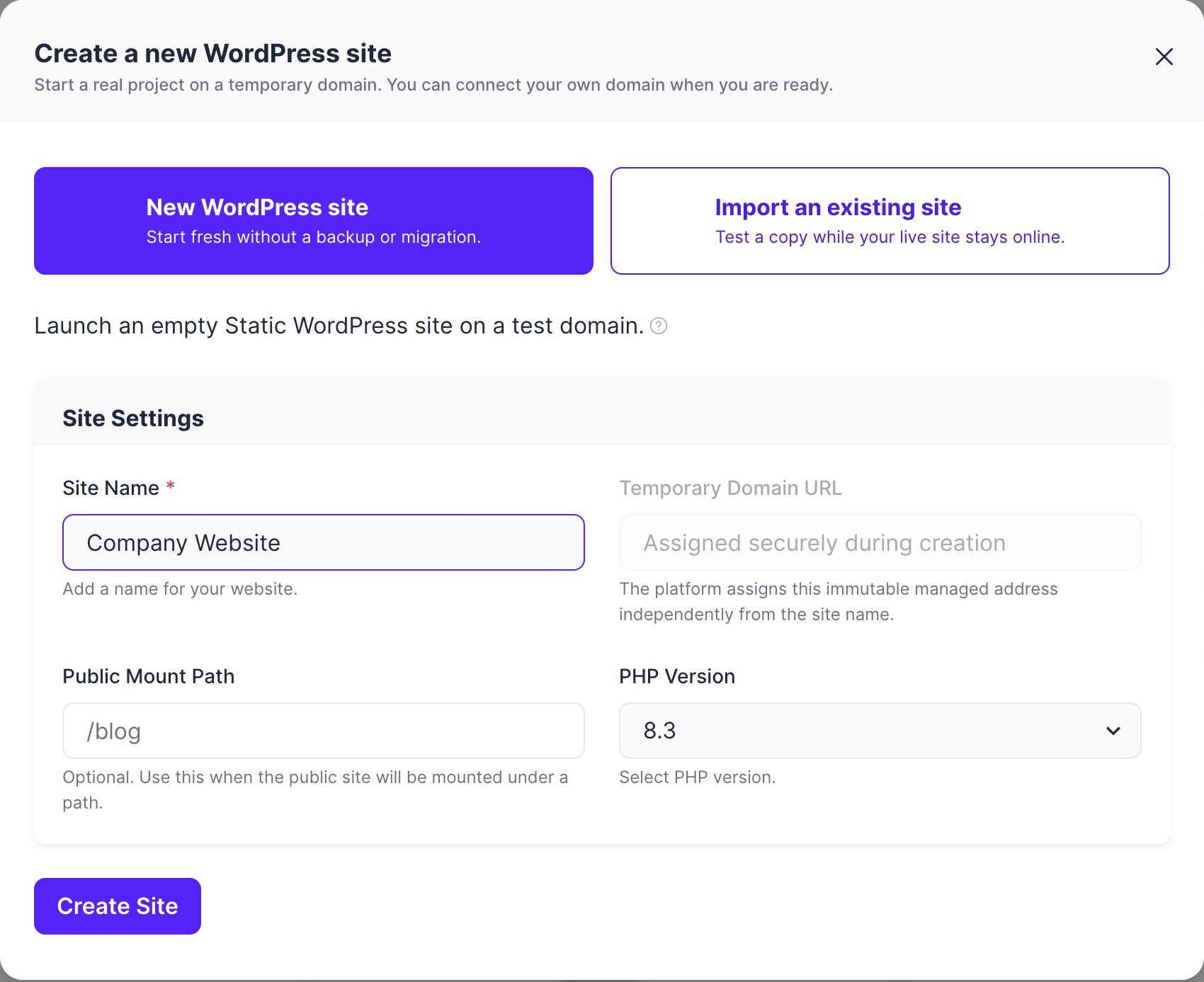
No backup file or migration plugin is needed for this path. If you want to bring an existing website instead, select Import an existing site and follow Import Site.
Follow the first publication
Studio completes the first publication automatically:
- Preparing WordPress creates and configures the private WordPress runtime.
- Publishing first version exports and uploads the starter site. The table can show a percentage and current stage.
- Ready means the first public entry point has been validated and Preview Static Site is available.
Preview Static Site becomes available after validation. Reports can finish in the background; wait for the publish control to be available before another push.
What a new Studio site includes
A new empty managed Studio site starts with editable example content: a home page, starter guides, a working contact form, and browser-based search for the published static site. Use the examples to test the full workflow, then edit, replace, or remove them in WordPress.
Yoast SEO is enabled for a new empty managed Studio site, and its sitemap is included in the static export. This fresh-site setup does not apply when you migrate an existing website; migrations preserve the source plugins and SEO configuration.
The temporary preview address displays a notice explaining that it is a static-site preview. The notice is not included when the site is published to a connected custom domain.
Edit content in WordPress
After the first publication, WordPress remains available through an editor session that is four hours by default. The exact duration follows your site and account policy. Click the WordPress login icon to open its dashboard, then edit your pages, text, images, starter guides, search, or form and save your changes.
The editor idle window renews while both the Studio dashboard and the WordPress tab opened from Studio remain open. When they are closed and the configured idle window expires, on-demand WordPress can stop automatically. Use Start WordPress when you need it again.
Publish your changes to the static site
Return to Studio and click the publish icon to open Push Changes. Publish the content you saved in WordPress, then use Preview Static Site to check the static website. Review your key pages, navigation, search, and forms.
Your static website stays online while WordPress is stopped. See Push Static Site for the publishing options.
Connect your domain when you are ready
Keep using the temporary address while you prepare your website. When you are ready to launch, follow Custom Domain. Connecting your domain remains part of the setup checklist; open Plans & Add-Ons to choose a paid plan before finishing domain setup.