Push Static Site
Pushing changes from WordPress to your static site is straightforward. In this article, we cover the three major options to push to your static site:
- Push Entire Site (from the Studio Dashboard)
- Push Changes (from within WordPress)
- Push current post/page (from within WordPress
Push Entire Site
You can push your entire WordPress website to your static site by clicking the Push button from within the dashboard:

Once you click on the button, a modal will open asking you to either push only changes or push the entire site:

Once you click one of the buttons, a loading indicator will appear, and the status of the site will change to "exporting":

As soon as the export has finished, it will return to "deployed".
Push Changes
Within WordPress, you get a bit more flexibility in terms of pushing to your static site - for example, you can only push the current changes:
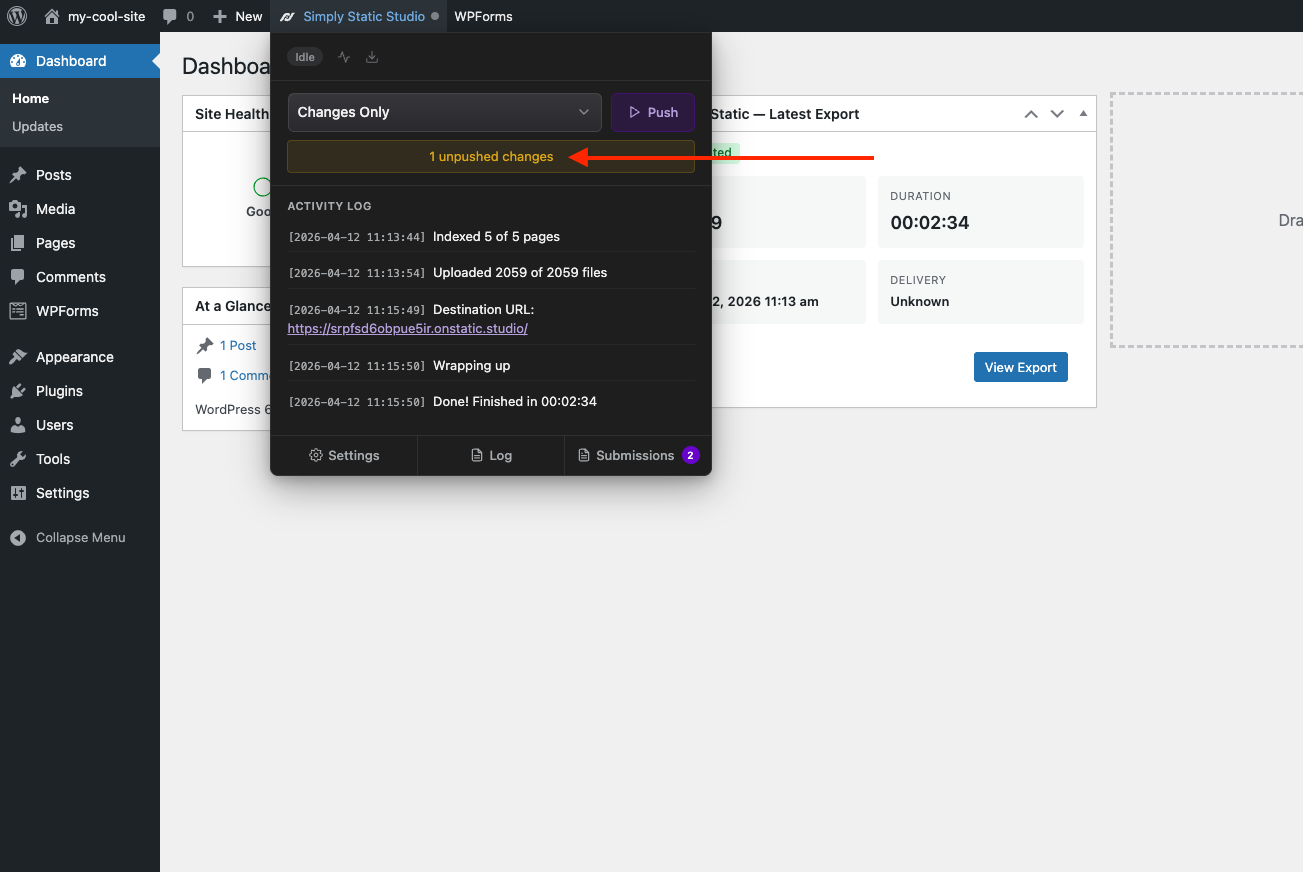
Click on the Simply Static Studio "command bar" at the top to open it.
It will show you exactly how many changes were detected, and by clicking "Push", you can push them to your static site.
We use the post modified date in WordPress for this, which means we track every piece of content added to your site (posts, pages, other CPTs, categories, tags, uploaded media files, etc.).
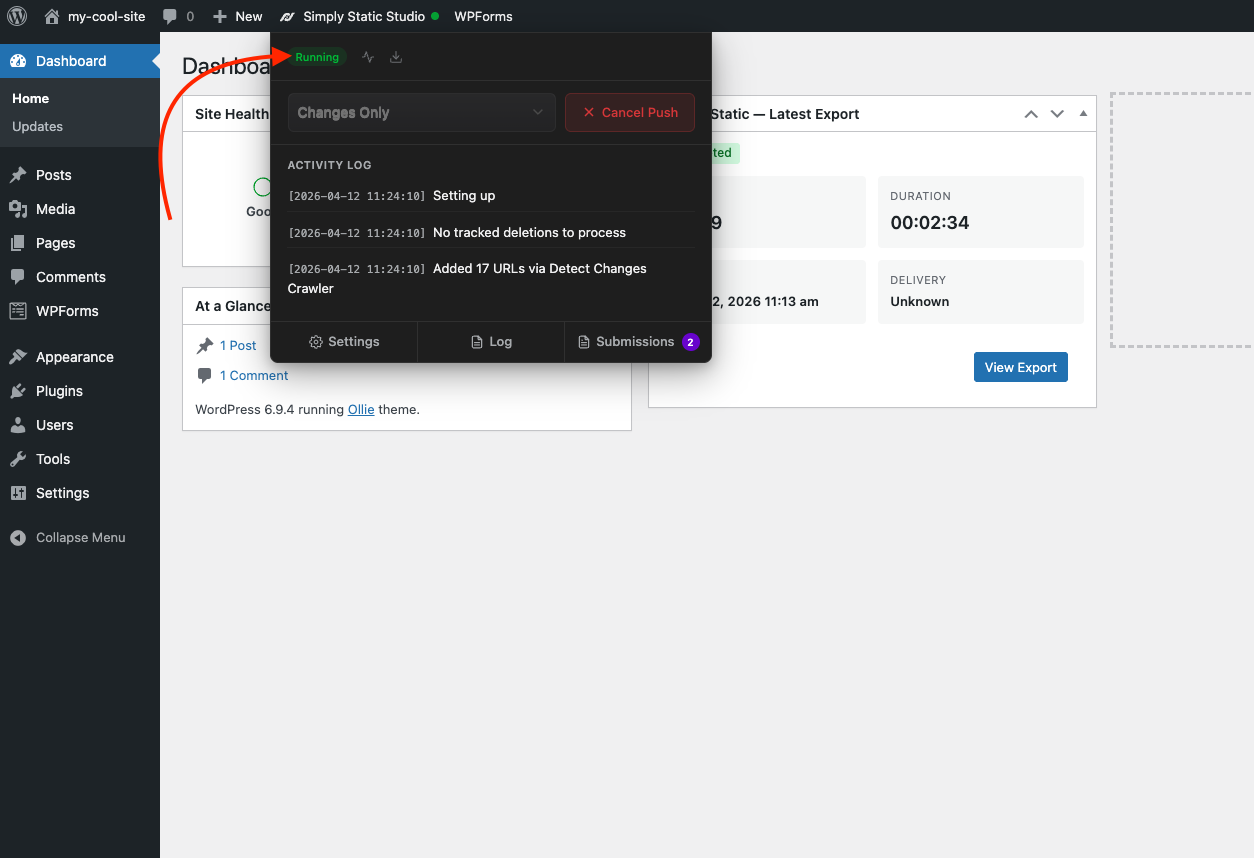
The green status indicator shows that the export is currently running, and it updates the Activity Log and the Log in real time, so you can see exactly which pages and files are being pushed.
Push Current Post or Page
You can also quickly push an updated or created post directly - this feature exists in two areas:
Edit a Page
You will find a push button when editing a page or post - click on it, and we will push the current page to your static site:
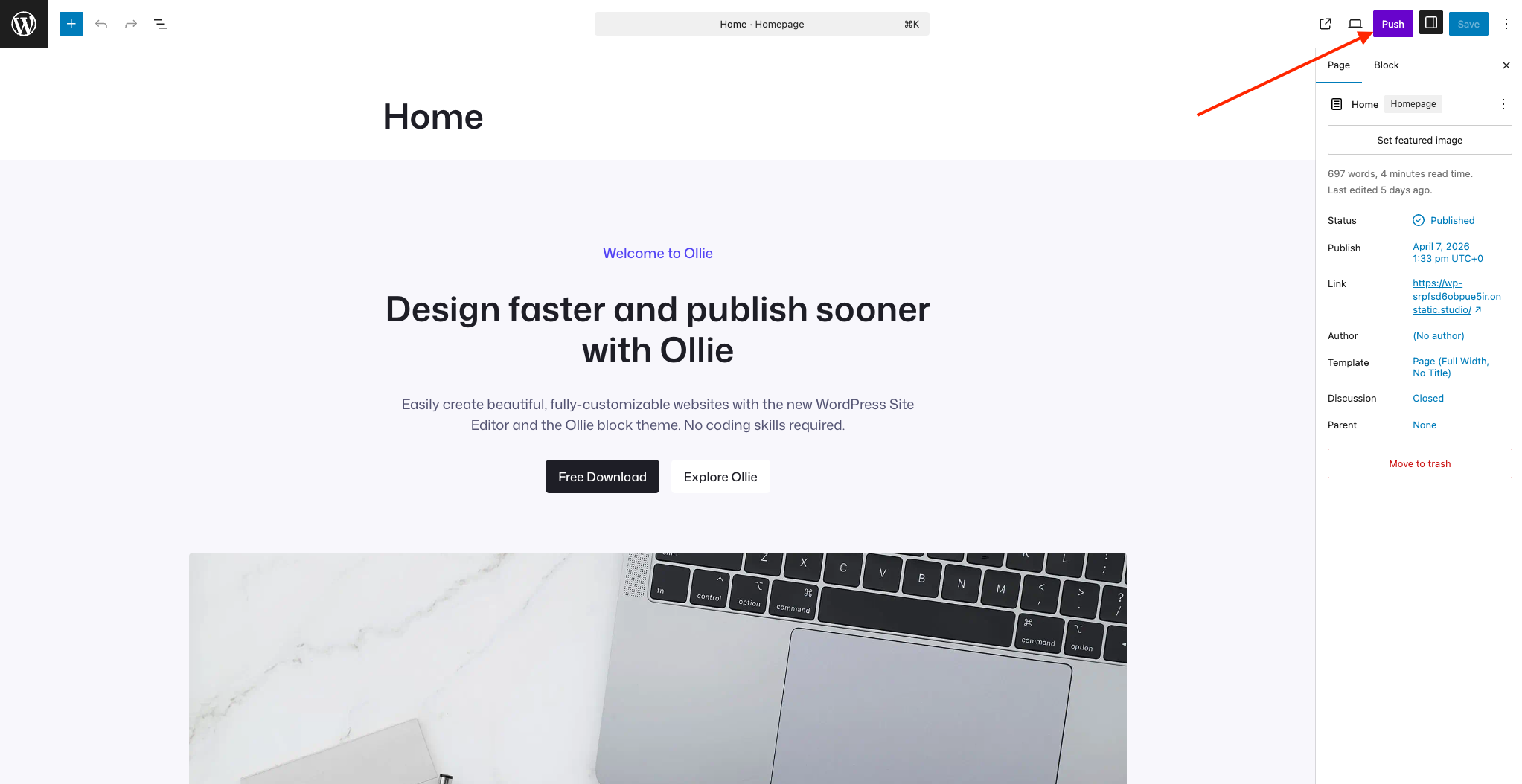
This button exists in various different UIs in WordPress - no matter if you use the Block Editor, the Classic Editor, or Elementor - it's always there for you to use.
Viewing a page
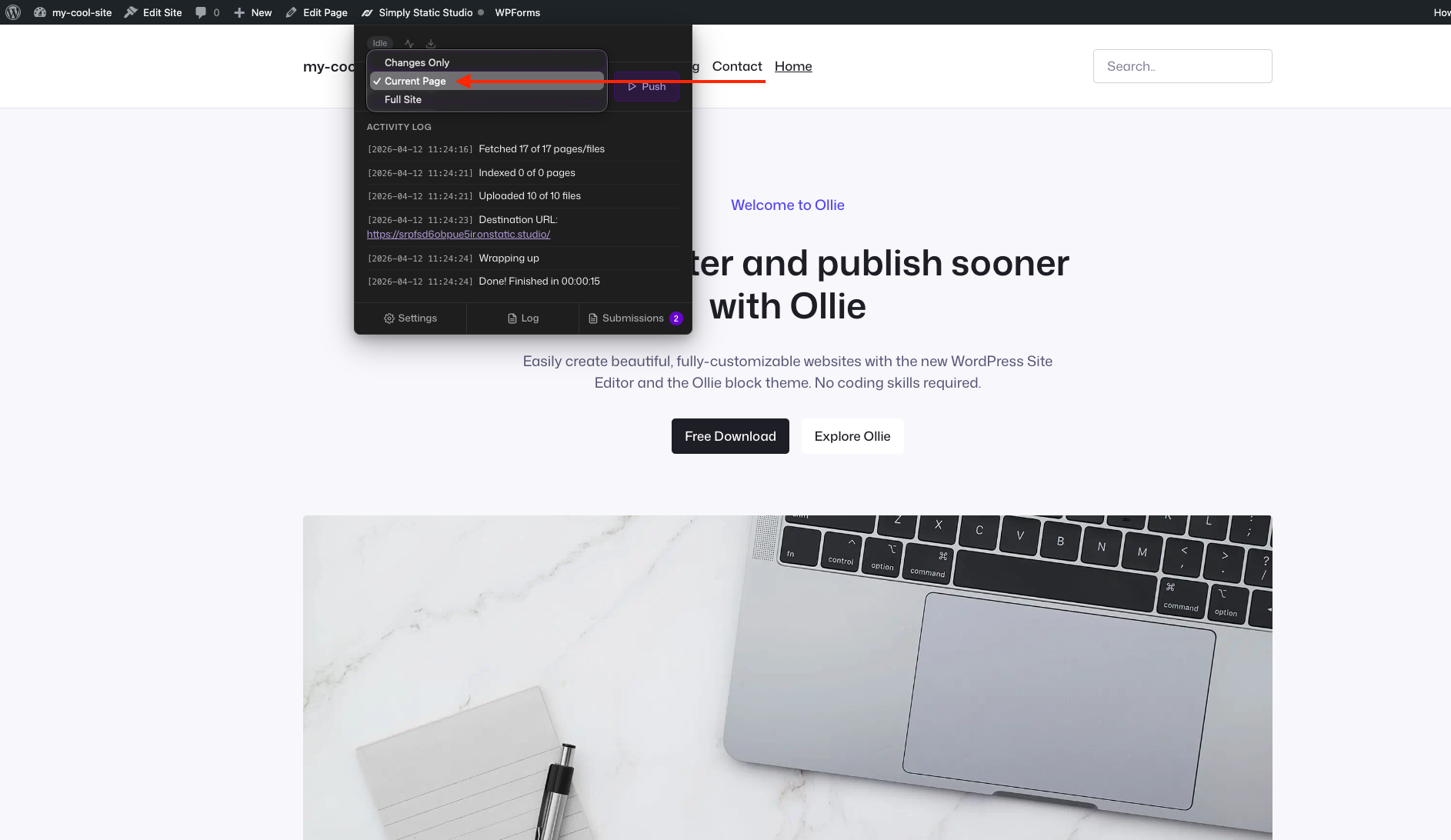
You can perform the same action from the frontend of your WordPress website - navigate to a page, open the command center, and choose "Current Page":