
Multi-Domain-Environments
You can publish several language domains from one WordPress installation. WordPress supplies one folder per language. Studio maps each folder to the root of its own static environment, so visitors see addresses such as https://de.example.com/kontakt/.
| Language | Path inside WordPress | Studio environment | Public static address |
|---|---|---|---|
| English | /en/contact/ |
English | https://en.example.com/contact/ |
| German | /de/kontakt/ |
German | https://de.example.com/kontakt/ |
1. Set up language folders in WordPress
In your supported multilingual plugin, such as WPML, Polylang or TranslatePress, choose the URL format that gives each language its own subdirectory. Keep the public domain mapping in Studio. Visit each WordPress language folder and check a translated page, its menu and the language switcher. Confirm that translated slugs, canonical links and hreflang alternates are present as expected before exporting.
2. Give each language a static destination
In Sites → your site → Static Site → Environments, enable environments if needed and create one for each language that needs a public domain. Enter the custom hostname on the matching environment. Follow its DNS instructions and wait for DNS and SSL verification on each hostname. Environment settings · Custom domain setup
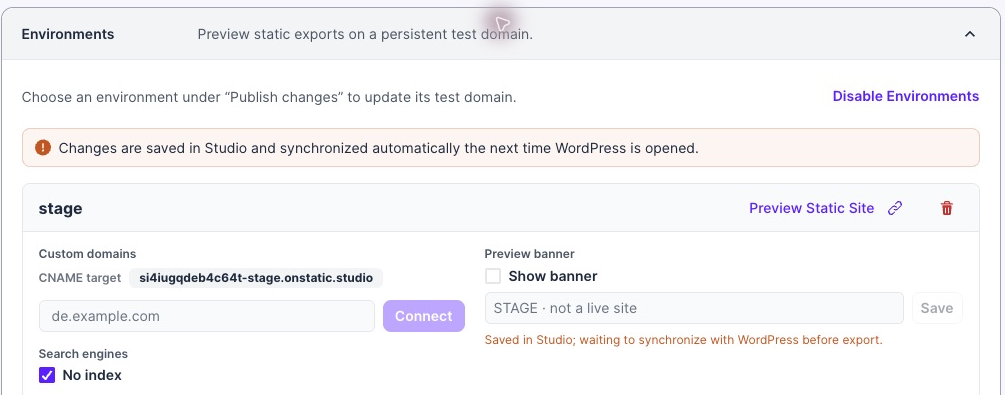
Keep No index enabled while a destination is for review. When the language site is ready to be indexed, turn it off for that public environment. If changes were saved while WordPress was asleep, start it and allow synchronization before exporting.
3. Connect WordPress languages to environments
In WordPress, open the Studio plugin's environment settings and choose Want to map your languages to environments? This control appears when a supported multilingual plugin and the environments are configured. Match each language to the environment that owns its public domain and choose Save language domains.
Studio handles replacement URLs for each destination. For example, mapping German to the environment for de.example.com moves the export at /de/ueber-uns/ to https://de.example.com/ueber-uns/. Leave the managed replacement fields under Studio's control.
4. Publish and verify
Open the WordPress publishing dropdown. Use Per Language to export one language, or use Full Site or Changes Only as appropriate. For each language, open the public domain and check the following.
- The homepage and a nested translated page load from the domain root. If the domain returns 404 or repeats
/de/, check the environment's domain and the saved language mapping, then export again. - Navigation links stay on the correct domain. The language switcher lands on the equivalent translated page. Check the source plugin's language URLs if the switcher goes somewhere unexpected.
- Images, styles, scripts and forms work. For missing assets, check hardcoded URLs in the theme or builder, then run a full export for the affected language.
- Canonical URLs,
hreflangalternates, feeds and sitemaps name the intended public domains. Correct source SEO or translation settings before republishing. Confirm that visitors reach static pages and that the private WordPress admin stays private.