
Mount a site under a path
A path mount lets you keep an application at https://example.com and publish a Studio site at https://example.com/blog. Your existing host receives the requests and forwards the blog paths to Studio's static origin. The visitor keeps the public address in the browser.
You need access to the routing configuration of the host serving the main domain. DNS routes hostnames, so routing just /blog requires an application rewrite or reverse proxy. To put an entire hostname such as blog.example.com on Studio, follow Custom Domain.
Configure the public address in Studio
- When creating or importing a site, open Advanced site settings if you want to set the Public Mount Path during setup. Use a leading slash and a path such as
/blog. Enter the hostname separately. - For an existing site, open Sites → your site → Static Site → Domain → Configure a path mount.
- In Public Domain, enter the hostname that serves your main app. In Mount Path, enter
/blogor your intended path. Keep the Studio Origin shown for this site and choose your Provider. - Review the generated configuration. Select Save mount settings, then run a fresh full export. Studio uses the public hostname and path when generating links, assets, feeds and canonical URLs.
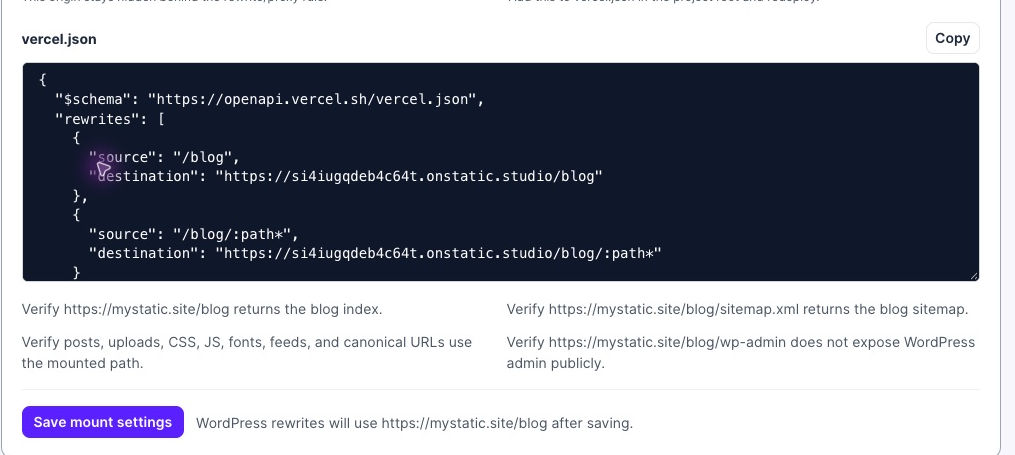
Route both the landing page and nested paths
Copy the generated configuration into the project that serves the main domain. Merge it with the existing routes, keeping the application's other paths in place, then deploy that routing change at your host. On Vercel the generated rules go in the project's vercel.json. Use your site's actual origin from Studio.
| Incoming request | Where the host should forward it |
|---|---|
/blog |
The Studio origin's /blog |
/blog/my-first-post/ |
The same nested path on the Studio origin |
/blog/wp-content/uploads/photo.jpg |
The same asset path on the Studio origin |
Both the exact mount and its wildcard are needed. The host should proxy the response internally so the browser stays at example.com/blog. Saving in Studio handles URL generation. Deploying the host configuration handles incoming traffic.
Test the mount in a browser
Open the main application's homepage, the blog landing page and a nested post. Follow a navigation link and inspect an image, stylesheet, sitemap and feed under the mounted path. Check the canonical URL on a post and verify that the public mount does not expose WordPress administration.
If only the landing page works, inspect the wildcard rule and its destination. If assets point outside the mount, compare the saved public domain and mount path with the host's rules and run a fresh export. If the browser shows the Studio origin, check for an external redirect where an internal rewrite is needed.
When moving an existing mount from /blog to /news, update Studio's mount settings, publish the new files and deploy the matching rules on the application host. Plan redirects for any old URLs you still need to support.