
Manage Tags
Tags are a simple way to organize your sites in the Static Studio dashboard. You can group sites however makes sense for you - by client, by project, by status, or anything else - and then filter your dashboard to show only the sites you care about right now. They're especially handy if you manage a lot of sites or run an agency with several clients.
This article covers creating a tag, assigning tags to your sites, and filtering your dashboard by tag.
Create a tag
You create and assign tags right from the Tags column on your Sites dashboard. Find the site you'd like to tag and click the + button in its Tags column to open the tag menu:
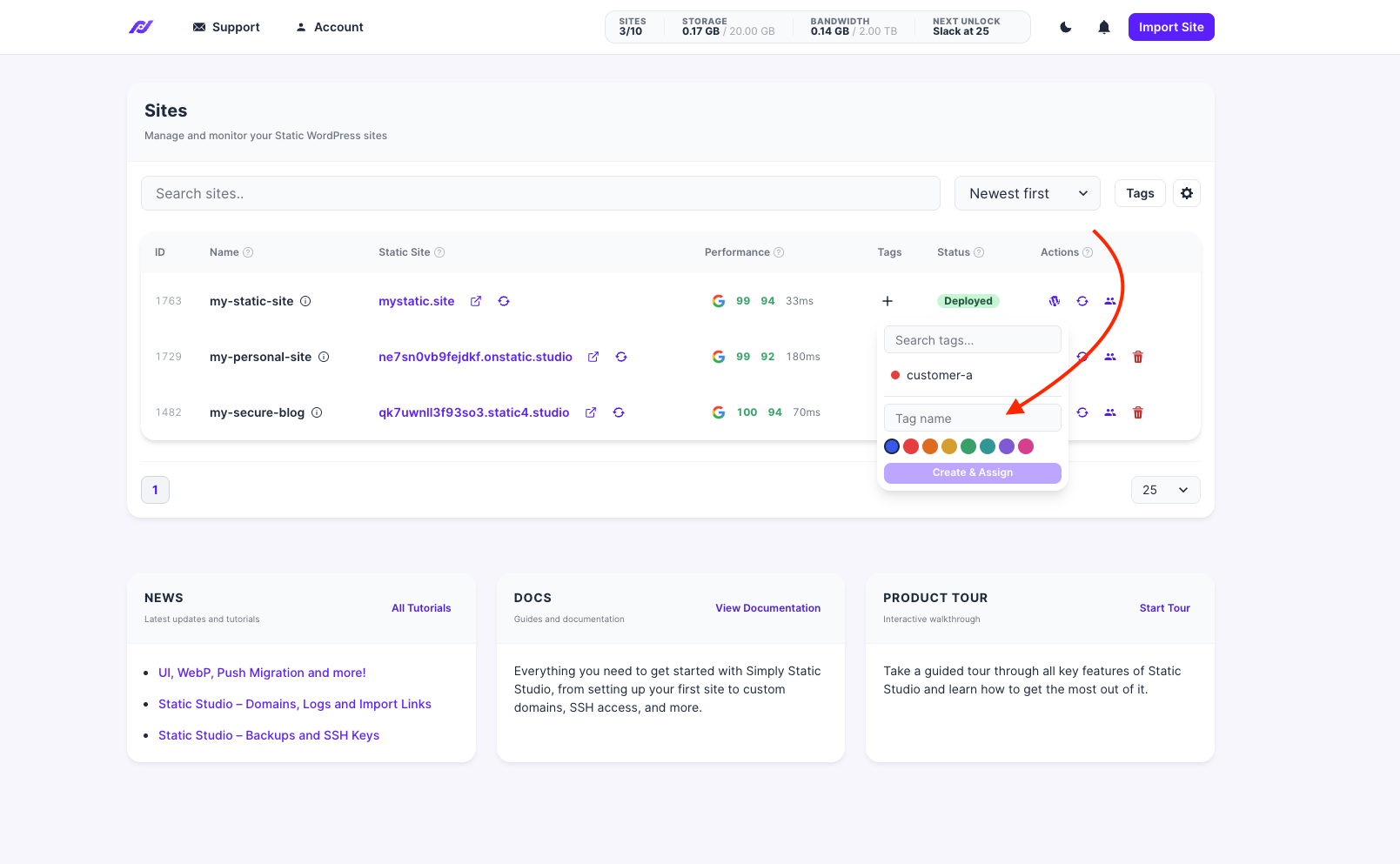
In the menu, you can:
- Search for an existing tag if you already have one you'd like to reuse.
- Create a new tag by typing a name into the Tag name field.
- Pick a color from the swatch row so the tag is easy to spot at a glance.
When you're happy with the name and color, click Create & Assign. The tag is created and added to that site in one step.
Assign tags to your sites
Once a tag exists, you can add it to any of your sites. Click the + in the Tags column for a site and choose the tag from the menu - you can reuse the same tag across as many sites as you like.
Here you can see different tags applied across several sites: one site is grouped under CUSTOMER-A and another under PERSONAL, while sites without a tag simply show the + button, ready for you to add one.
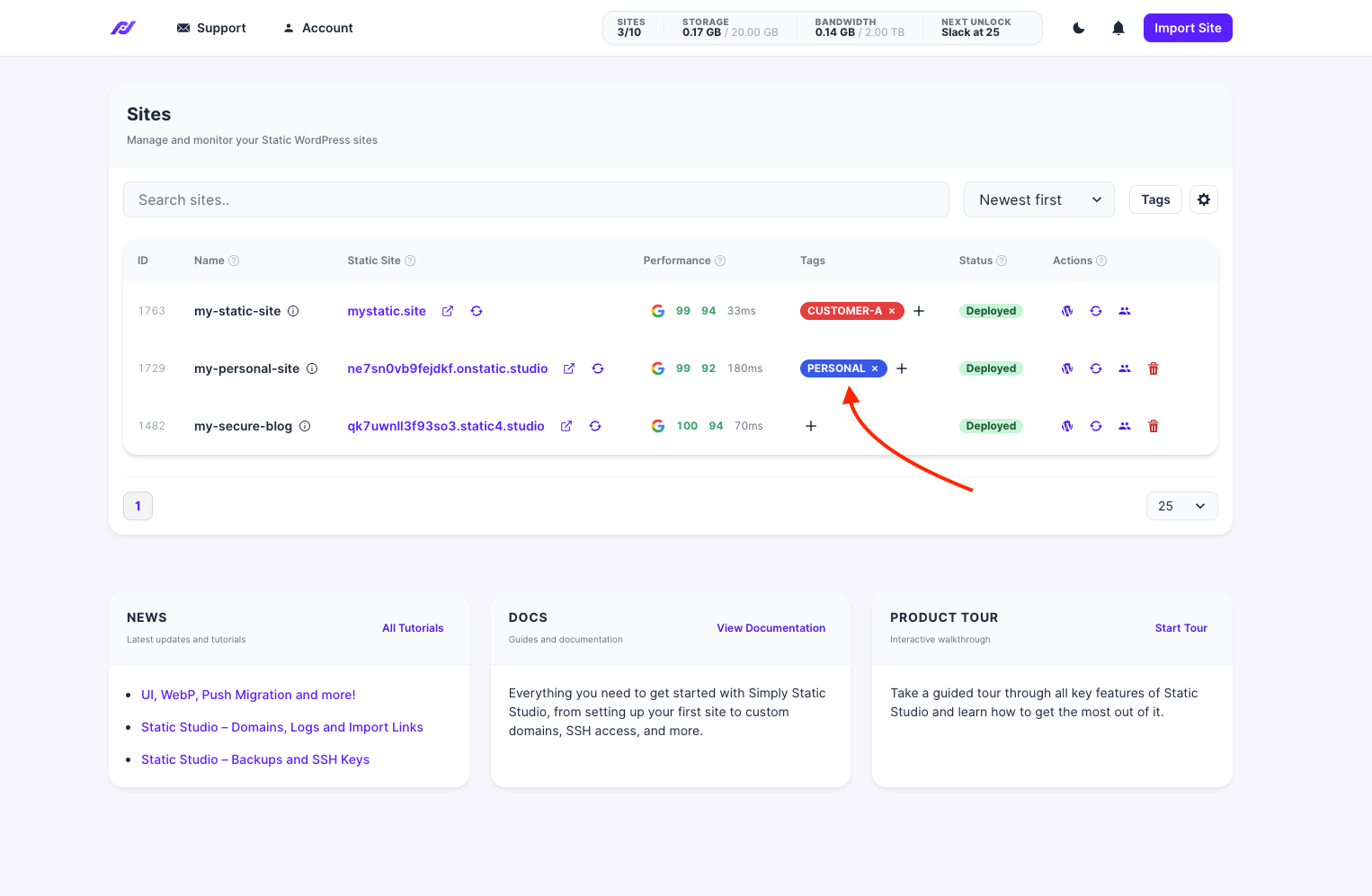
A site can have more than one tag, so feel free to combine them - for example, tagging a site with both a client name and a project type.
To remove a tag from a site, click the small × next to the tag name.
Filter your sites by tag
Tags really pay off when you have many sites. Use the Tags button above your site list to filter the dashboard down to just the sites you want to see.
Click Tags, then check the tags you'd like to filter by. The list updates to show only the sites that match:
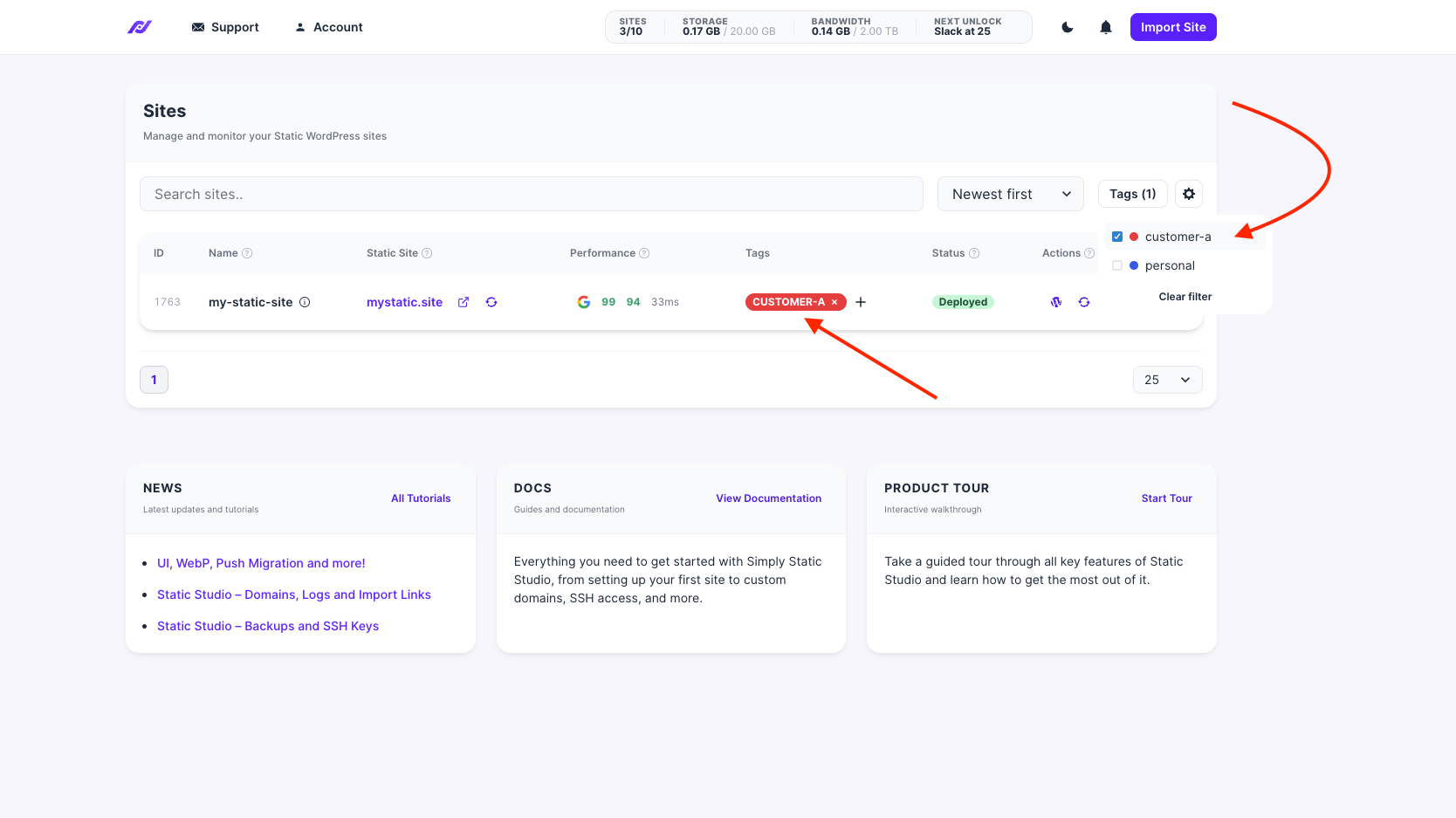
When a filter is active, the button shows how many tags you're filtering by (for example, Tags (1)). To go back to seeing all your sites, open the menu again and click Clear filter.
Managing tags from the CLI
If you prefer the command line - or want your AI assistant to organize your sites for you - you can also create and assign tags with the Static Studio CLI:
static-studio tags create Client --color '#3858E9' static-studio tags assign <siteId> <tagId> static-studio tags site <siteId>
See the CLI documentation for the full set of tag commands.