
Multi-Domain-Environments
Static Studio supports custom domains for environments. This makes it possible to publish different language versions of a single WordPress site on separate public domains or subdomains.
A typical setup looks like this:
Source WordPress language URLs: mysite.com/en/ mysite.com/de/
Public static domains: en.acme-agency.eu de.acme-agency.eu
The important part: your multilingual plugin should export languages as subdirectories inside WordPress. Static Studio then maps those language exports to the correct environment and public domain.
Important: Use language folders in WordPress, not domain mapping
When preparing your multilingual plugin, configure each language to use a directory-based URL structure.
Good setup:
mysite.com/en/ mysite.com/de/ mysite.com/fr/
Do not configure the language domains directly inside WPML, Polylang, or TranslatePress for this Static Studio workflow.
Avoid this inside WordPress:
example.com example.de example.fr
Static Studio handles the final public domains through environments. During publishing, Studio takes the language output from its WordPress subdirectory and publishes it to the root of the mapped environment domain.
Example:
WordPress export path: mysite.com/de/ueber-uns/
Final public static URL: de.acme-agency.eu/ueber-uns/
This keeps the WordPress setup simple, keeps WordPress private, and lets Studio automatically manage the final public URL replacement.
Workflow overview
The setup has three parts:
- Prepare your multilingual plugin to export languages as subdirectories.
- Create environments in Static Studio and map the public domains.
- Connect each WordPress language to the matching Studio environment.
After that, you can publish the full site, changed pages only, or a specific language.
Step 1: Prepare your multilingual plugin
Set up your languages in WordPress first.
In WPML, Polylang, or TranslatePress, configure the language URL format so languages are exported into subdirectories.
Example:
mysite.com/en/ mysite.com/de/
This is the source structure Static Studio uses during export.
Before moving on, check that your translated pages, menus, language switcher, SEO metadata, canonical URLs, hreflang tags, and translated slugs work correctly in WordPress.
Do not point your language domains directly to WordPress. The custom domains will be mapped in Static Studio instead.
Step 2: Create environments and map domains in Static Studio
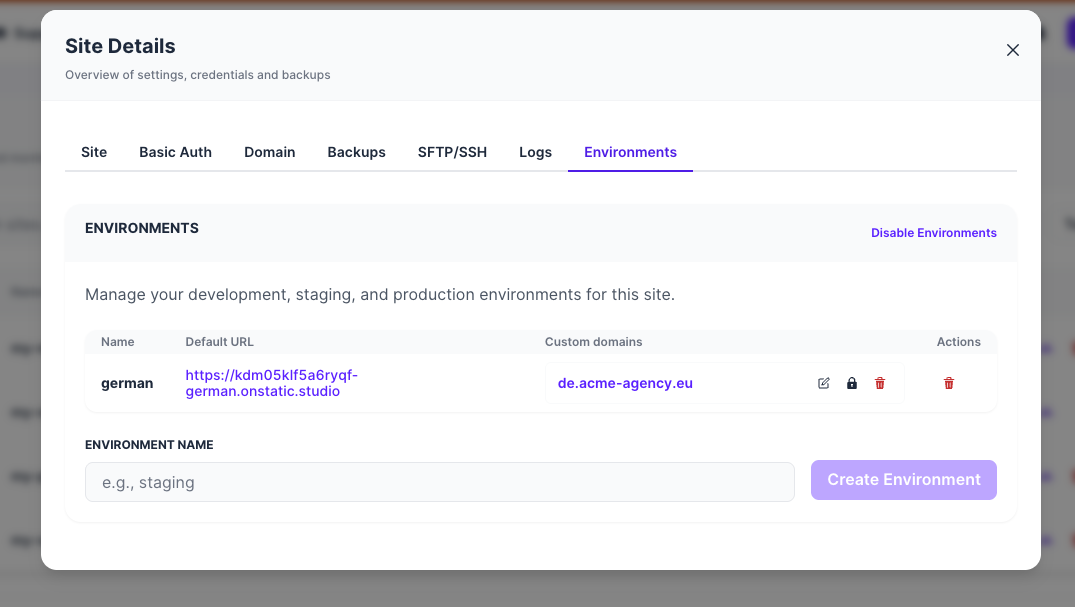
In Static Studio, open the site and go to:
Site Details → Environments
Create an environment for each language that needs its own public domain.
Example:
| Language | Studio environment | Public domain |
|---|---|---|
| English | English | en.acme-agency.eu |
| German | german | de.acme-agency.eu |
Add the custom domain to the matching environment.
Example:
Environment: german Custom domain: de.acme-agency.eu
Follow the DNS instructions shown by Static Studio for each custom domain.
Once DNS and SSL are ready, the environment can receive static exports for that language.
Step 3: Connect languages to environments in WordPress
Go back to WordPress and open the Simply Static Studio settings.
In the environment section, click:
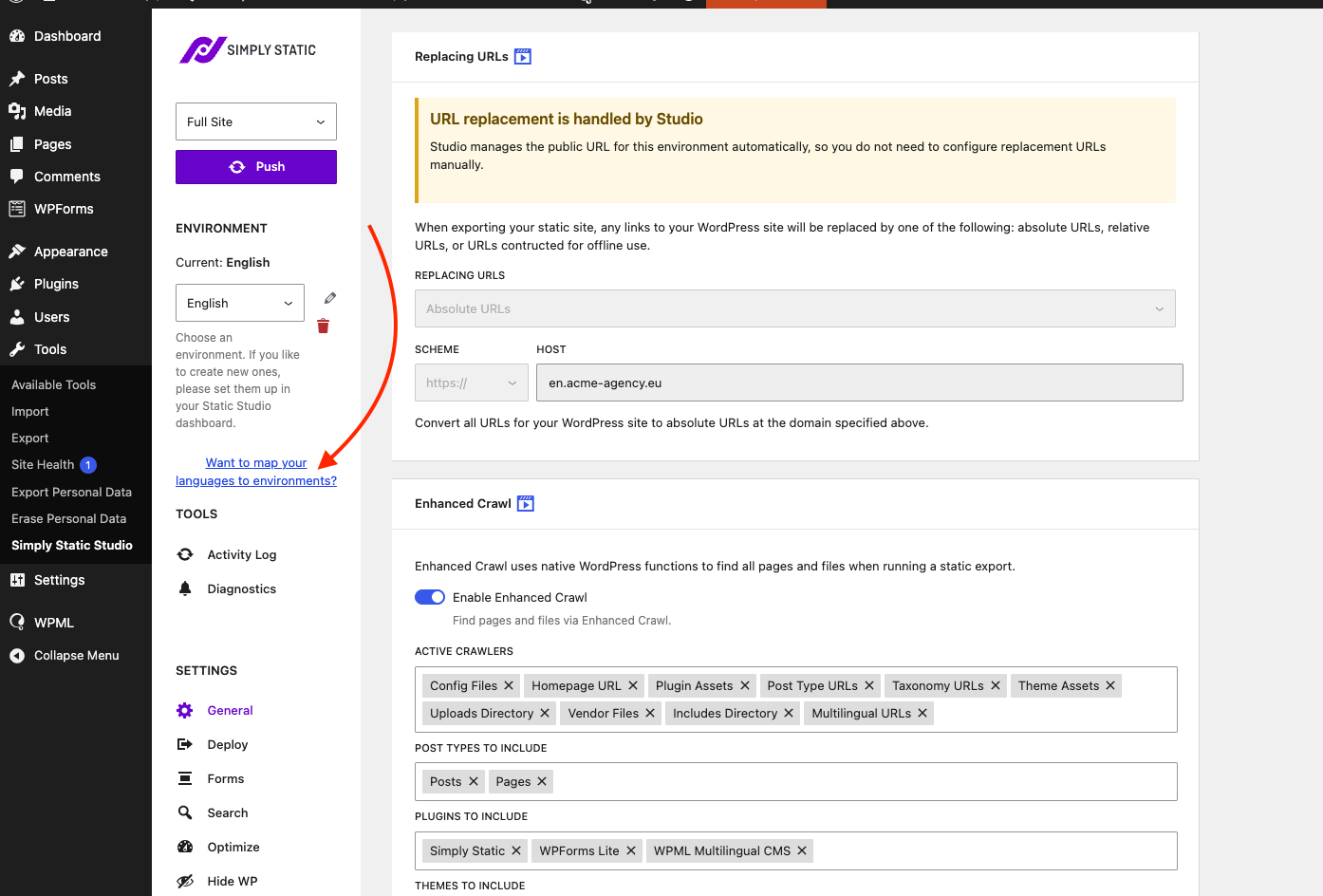
in German, Studio exports the German:Want to map your languages to environments?
This opens the language mapping dialog:
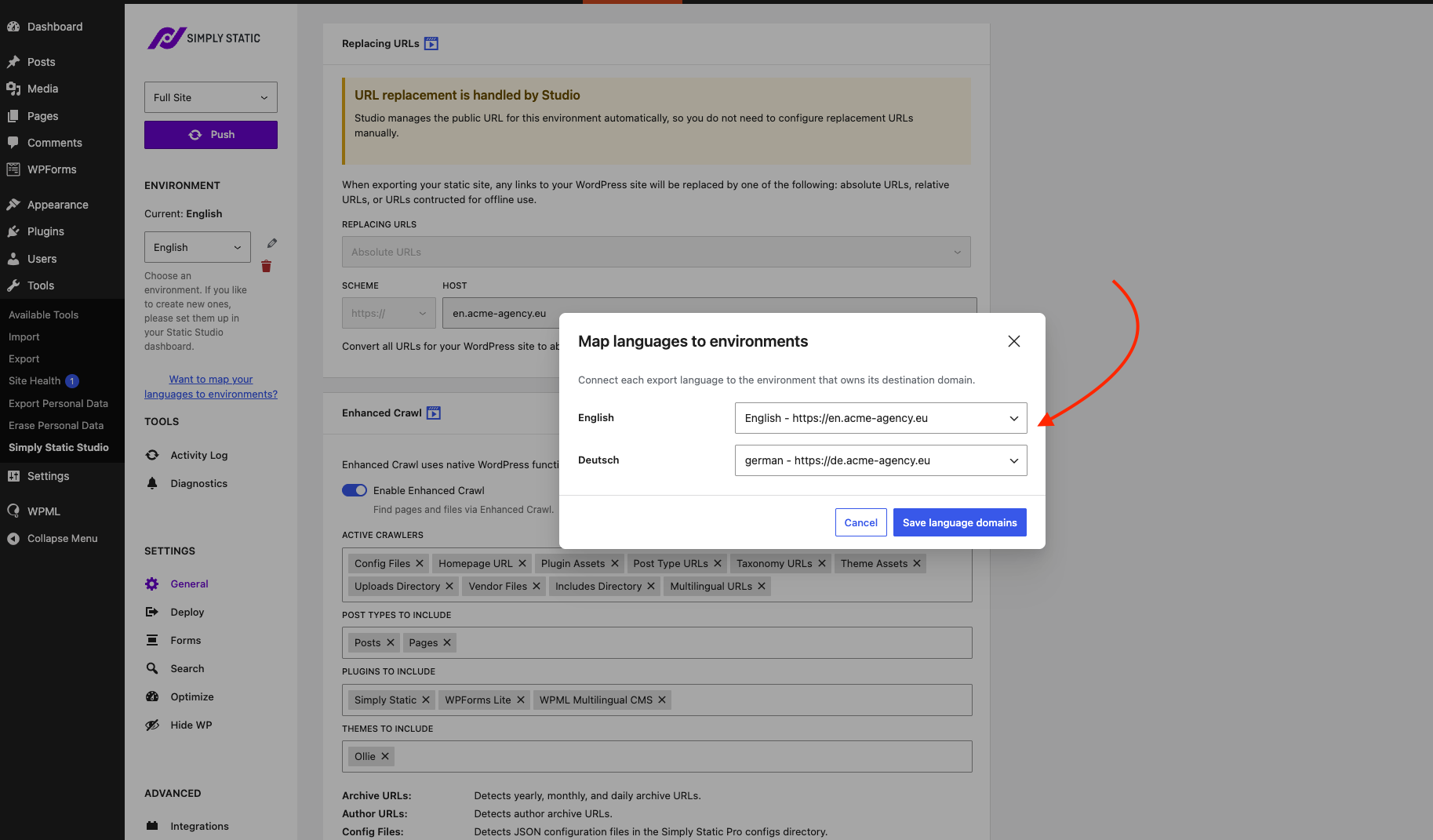
Map each WordPress language to the Studio environment that owns the matching public domain.
Example:
| WordPress language | Studio environment |
| English | English - https://en.acme-agency.eu |
| Deutsch | german - https://de.acme-agency.eu |
Click Save language domains.
Static Studio now knows which environment should receive each language export.
URL replacement is handled by Studio
When using Static Studio environments, you do not need to configure replacement URLs manually.
The replacement URL fields are handled by Studio automatically based on the selected environment and its public domain.
For example, when the German language is connected to the german environment, Studio knows that the German export should use:
https://de.acme-agency.eu
During export, Studio handles the required URL replacements and moves the language output to the correct public domain structure.
Step 4: Publish a language
In WordPress, open the Simply Static Studio publish dropdown.
You can publish:
- Changes Only
- Full Site
- Per Language
Choose the language you want to publish.
If you publish in German, Studio exports the German directory and publishes it to the environment mapped to German.
Example:
Source language path: mysite.com/de/
Mapped Studio environment: german
Public domain: de.acme-agency.eu
The final public site is served from the root of the German domain:
de.acme-agency.eu/
de.acme-agency.eu/ueber-uns/
de.acme-agency.eu/kontakt/
Verification checklist
After publishing, check each language domain.
- ✓ Each language is configured as a subdirectory in WordPress
- ✓ Each language has a matching Studio environment
- ✓ Each environment has the correct custom domain
- ✓ DNS and SSL are active for every custom domain
- ✓ Each WordPress language is mapped to the correct Studio environment
- ✓ URL replacement is handled by Studio
- ✓ The language homepage loads on the public domain
- ✓ Translated pages load from the root of the language domain
- ✓ Menus and internal links point to the correct public domain
- ✓ Language switchers point to the correct language domains
- ✓ Images, CSS, JavaScript, and uploads load correctly
- ✓ Canonical URLs use the correct language domain
- ✓ hreflang tags reference the correct alternate language domains
- ✓ Sitemaps and feeds work for each language
- ✓ Forms work on each language domain
- ✓ WordPress admin is not exposed publicly
Troubleshooting
My language domain shows a 404
Check that the language is mapped to the correct Studio environment and that the environment has the correct custom domain.
Then run a fresh export for that language.
My language still appears under /de/ on the public domain
Check the language-to-environment mapping. Studio should move the exported language directory to the root of the mapped public domain.
For example:
Source: mysite.com/de/about/
Final: de.example.com/about/
The language switcher points to the wrong place
Check your multilingual plugin settings and make sure the language URLs are working correctly in WordPress.
Then confirm that each language is mapped to the correct Studio environment.
The replacement URL fields are disabled
That is expected. Static Studio manages the public URL for the selected environment automatically.
You do not need to configure replacement URLs manually.
Images or assets are missing
Run a full export for the affected language and check whether any theme, plugin, or page builder outputs hardcoded URLs.
Canonical or hreflang URLs are wrong
Review the multilingual plugin and SEO plugin output in WordPress.
Then republish the affected language and verify the static output on the public domain.