
Whitelabel
Whitelabel lets you fully customize the Simply Static Studio dashboard for your team members and clients. Replace the branding, hide features they don't need, customize the login page, and control exactly what they see.
This feature unlocks automatically when your account reaches 10 sites as part of Growth Rewards.
Getting started
Open the Whitelabel panel by clicking the gear icon in your dashboard. At the top, you'll find the Enable Whitelabel Mode toggle:
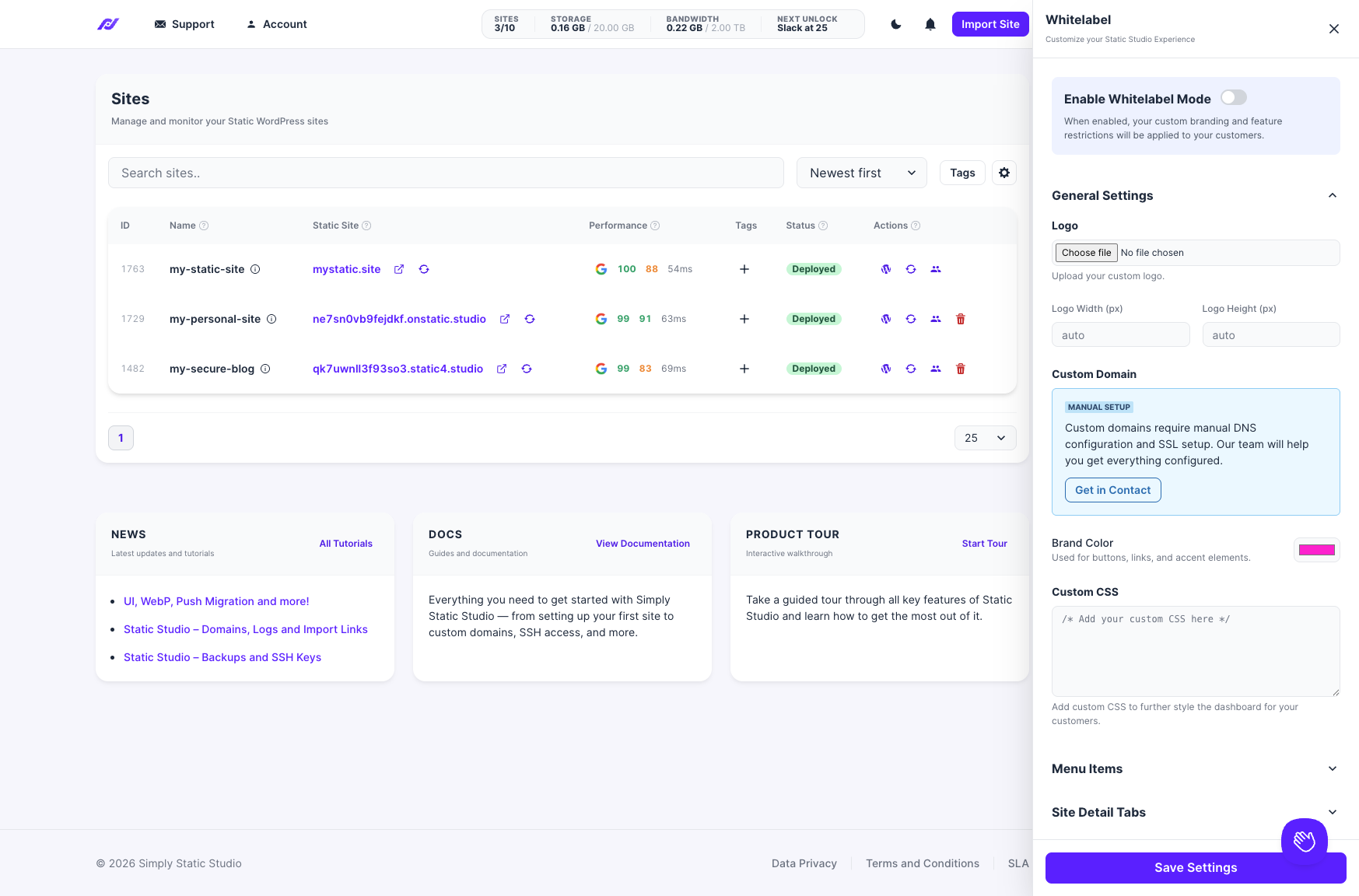
When enabled, your custom branding and feature restrictions will be applied to your team members and clients. Your own view as the account owner is not affected — you'll always see the full dashboard.
General Settings
Logo
Upload your custom logo to replace the Simply Static Studio logo. You can set a custom width and height in pixels, or leave both at auto to use the image's original dimensions.
Custom Domain
You can use a custom domain for your dashboard (e.g., dashboard.youragency.com ). This requires manual DNS configuration and SSL setup — click Get in Contact, and our team will help you set it up.
Brand Color
Set a brand color to customize buttons, links, and accent elements across the dashboard. Click the color picker or enter a hex value.
Custom CSS
For more advanced styling, add custom CSS to further customize the dashboard appearance. This is applied on top of the brand color, giving you full control over the look and feel.
Menu Items
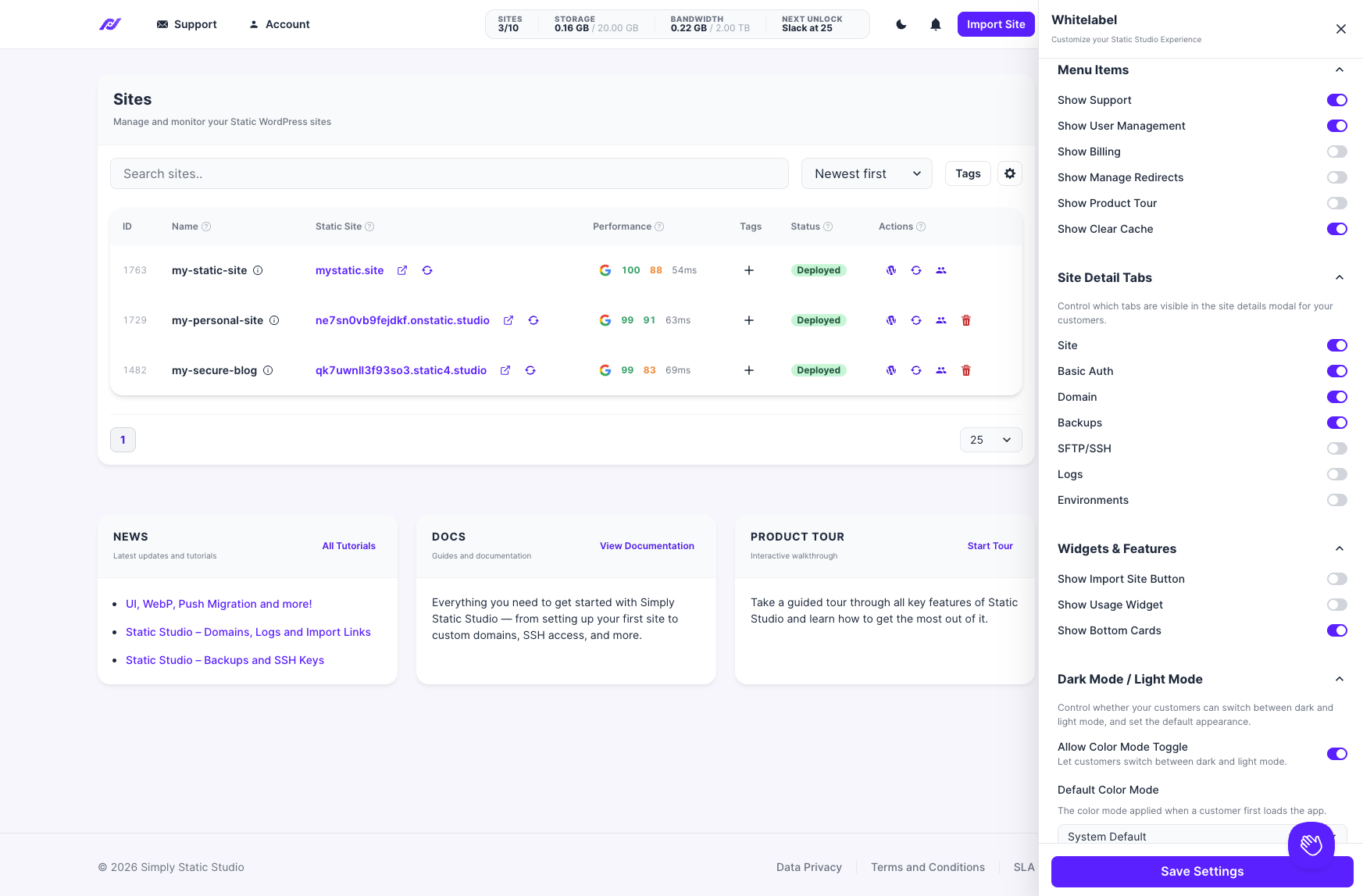
Control which top-level menu items are visible to your team members:
| Menu Item | What it controls |
|---|---|
| Show Support | The support link in the navigation |
| Show User Management | Access to the user/team management features |
| Show Billing | Access to billing and subscription settings |
| Show Manage Redirects | The redirects management for static sites |
| Show Product Tour | The interactive product tour |
| Show Clear Cache | The cache clearing action for static sites |
Toggle any of these off to simplify the dashboard for your clients. For example, you'll likely want to hide Billing and User Management for client accounts.
Site Detail Tabs
Control which tabs are visible in the site details modal for your team members:
| Tab | What it shows |
|---|---|
| Site | General site information and settings |
| Basic Auth | Basic authentication credentials |
| Domain | Custom domain management |
| Backups | Backup creation and restoration |
| SFTP/SSH | SFTP and SSH access credentials |
| Logs | WordPress debug log viewer |
| Environments | Staging/production environment management |
This is useful for hiding technical features from non-technical clients. A client who only needs to trigger static site updates doesn't need to see SSH credentials or debug logs.
Widgets & Features
Control which dashboard widgets and features are visible:
| Widget | What it controls |
|---|---|
| Show Import Site Button | The "Import Site" button in the top navigation |
| Show Usage Widget | The storage and bandwidth usage indicators |
| Show Bottom Cards | The News, Docs, and Product Tour cards at the bottom of the dashboard |
Dark Mode / Light Mode
- Allow Color Mode Toggle - Let your team members switch between dark and light mode themselves. Turn this off to enforce a single appearance.
- Default Color Mode - Set the color mode applied when someone first loads the dashboard. Options are System Default, Light, or Dark.
Support & Contact
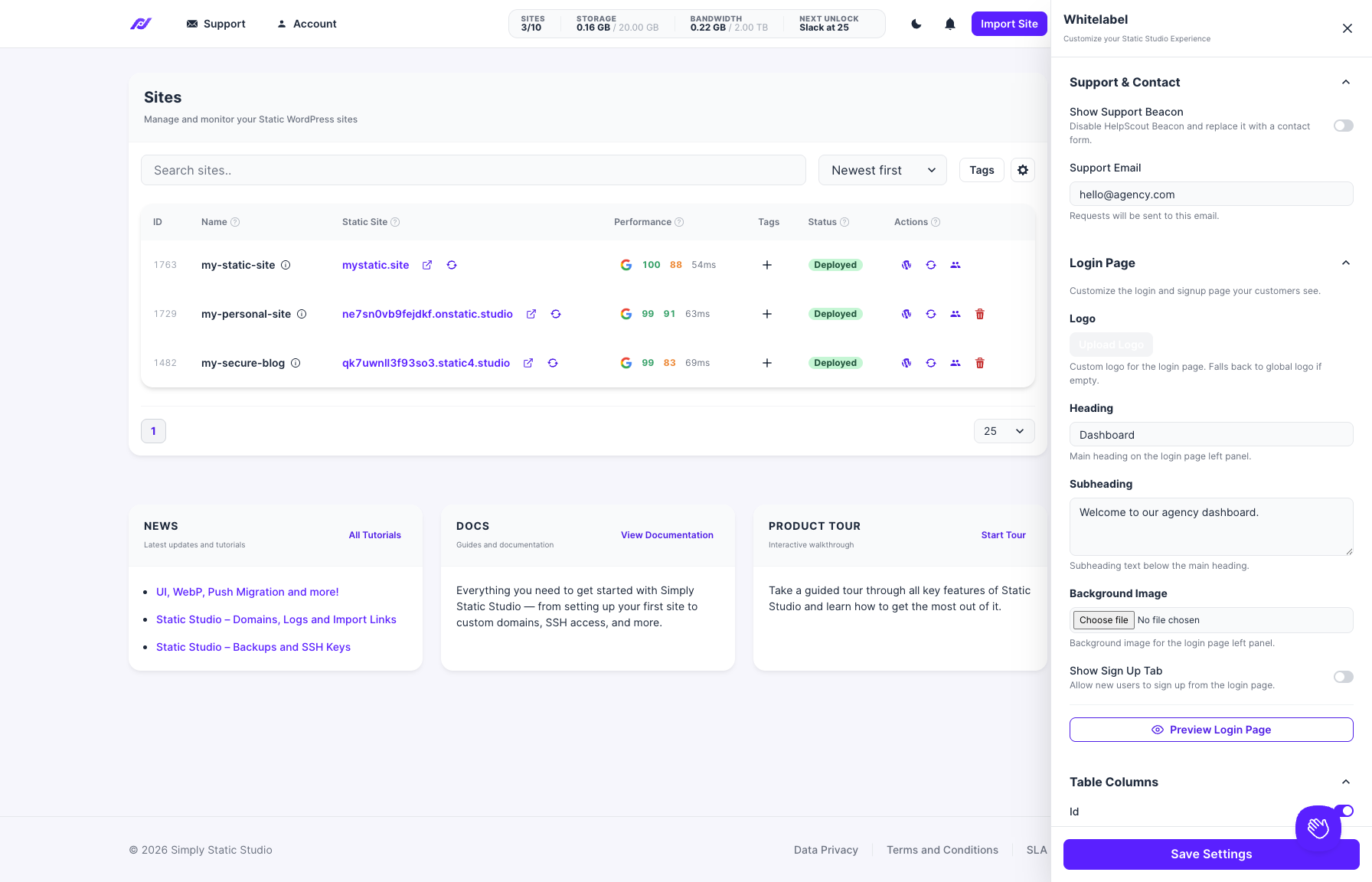
Show Support Beacon
Toggle this off to disable the HelpScout support beacon (the chat widget) and replace it with a simple contact form. Useful when you want support requests to go through you instead of directly to Simply Static Studio.
Support Email
Set the email address where support requests are sent. When the Helpscout beacon is disabled, contact form submissions go here, so you can route them to your own inbox.
Login Page
Customize the login and signup page your team members and clients see:
- Logo - Upload a separate logo for the login page. Falls back to the global logo if left empty.
- Heading - The main heading on the login page (e.g., "Dashboard").
- Subheading - The text below the heading (e.g., "Welcome to our agency dashboard.").
- Background Image - Upload a background image for the login page's left panel.
- Show Sign Up Tab - Toggle whether new users can sign up from the login page. Turn this off if you only want users you've explicitly invited to have access.
Use the Preview Login Page button to see how your customized login page looks before saving.
Table Columns
Control which columns are visible in the sites table. This lets you simplify the table view for team members who don't need to see every data point.
Presets
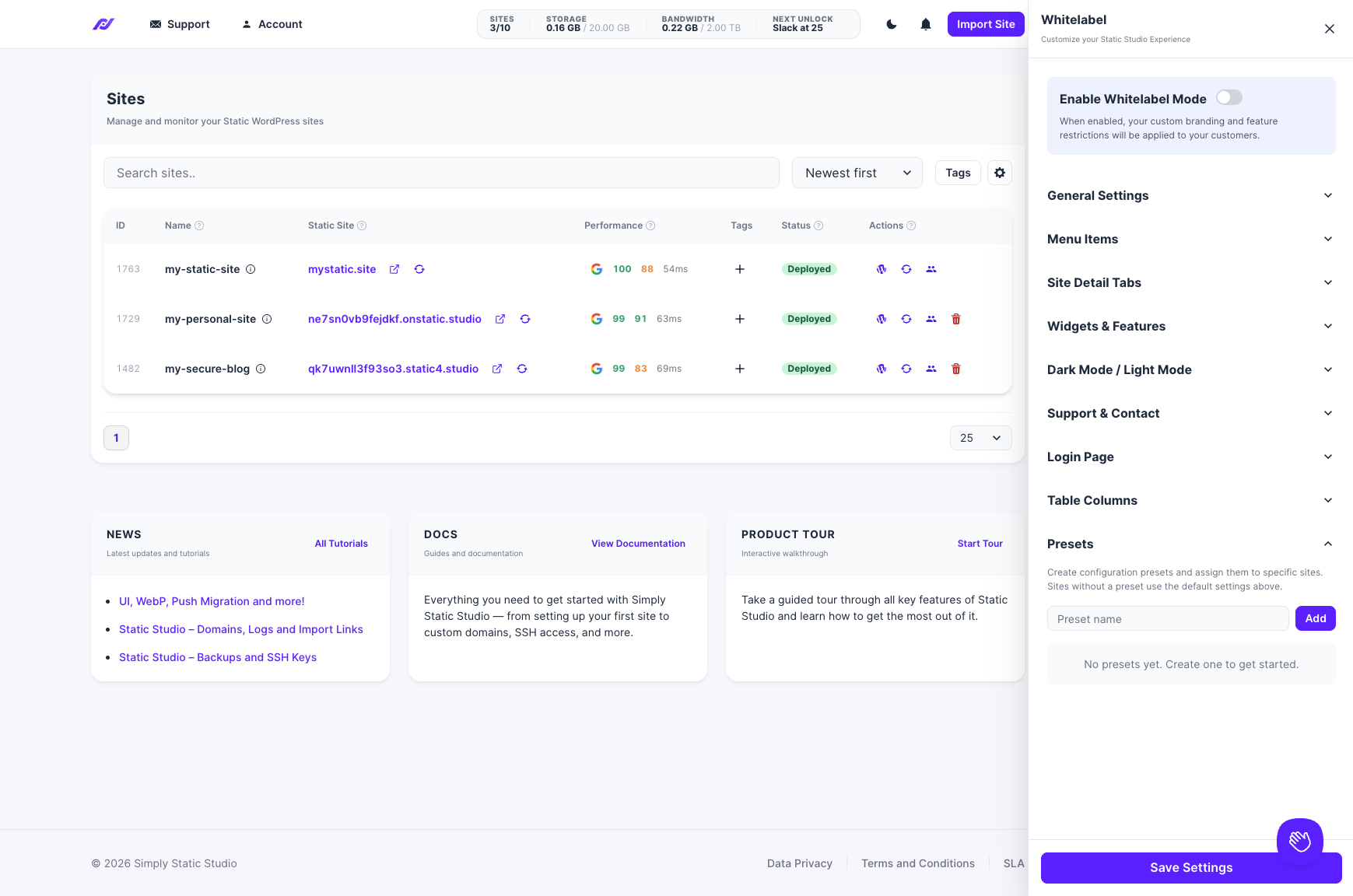
Presets let you create different whitelabel configurations and assign them to specific sites. This is useful when you manage sites for multiple clients and want each one to see a different branded experience.
To create a preset:
- Enter a name in the Preset name field and click Add.
- Configure the preset with its own branding, menu visibility, and feature settings.
- Assign the preset to specific sites.
Sites without a preset assigned will use your default whitelabel settings (configured in the sections above).
Grace period
If your account drops to fewer than 10 sites, Whitelabel remains active for 30 days. You'll receive a notification with the deactivation date. If you add sites back above the threshold within that window, nothing changes.
All your whitelabel configurations - branding, menu settings, presets - are saved even if the feature is deactivated. When you cross the 10-site threshold again, everything restores automatically.