
Billing Portal
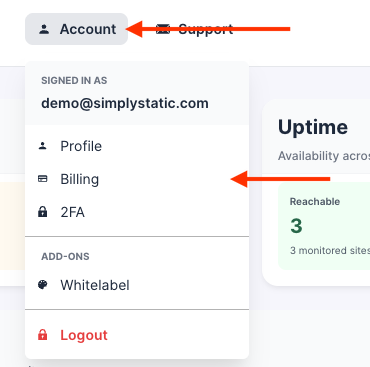
Open Account → Billing to manage your hosting subscription, purchased add-ons, invoices, and billing details. Billing is also available as a tab on the Account page.
Hosting and add-on subscriptions
The hosting section shows the subscription status, renewal date, and available upgrade or subscription controls. Use Cancel Renewal to stop its next renewal and review the confirmation before proceeding.
Purchased add-ons appear separately under Add-ons, with their status, capacity where applicable, renewal date, and renewal controls. Canceling renewal for one subscription does not cancel the other subscriptions shown here.
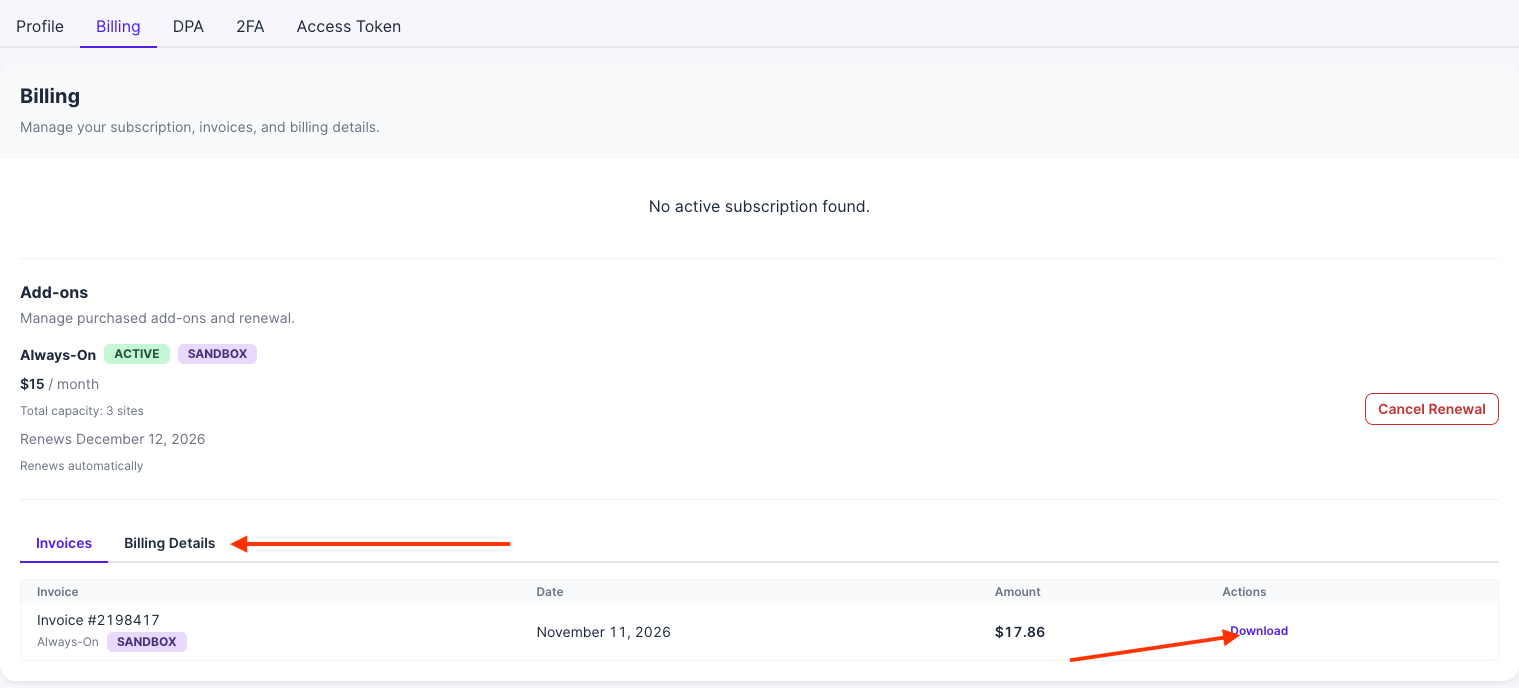
The screenshot uses a demo account with a sandbox Always-On subscription and no linked hosting subscription. Your hosting plan and purchases determine what appears.
To explore plans or purchase an add-on, open Plans & Add-Ons in the top navigation. For Always-On site assignments, see Always-On.
Invoices
Select Invoices to review the available hosting and add-on payments. Click Download next to an invoice to save a copy. Sandbox transactions are labeled Sandbox.
Billing details
Select Billing Details to update your billing name, company, email, tax ID, and address. Click Save Billing Details after editing the form. If the portal cannot load a linked billing account, contact support rather than making a duplicate purchase.
Expired subscriptions
Keep your subscription active to retain your hosted sites. Expired accounts normally have a seven-day grace period before site cleanup. Download any backups you need before your service ends, and contact support promptly if you need help reactivating.