
SFTP & SSH
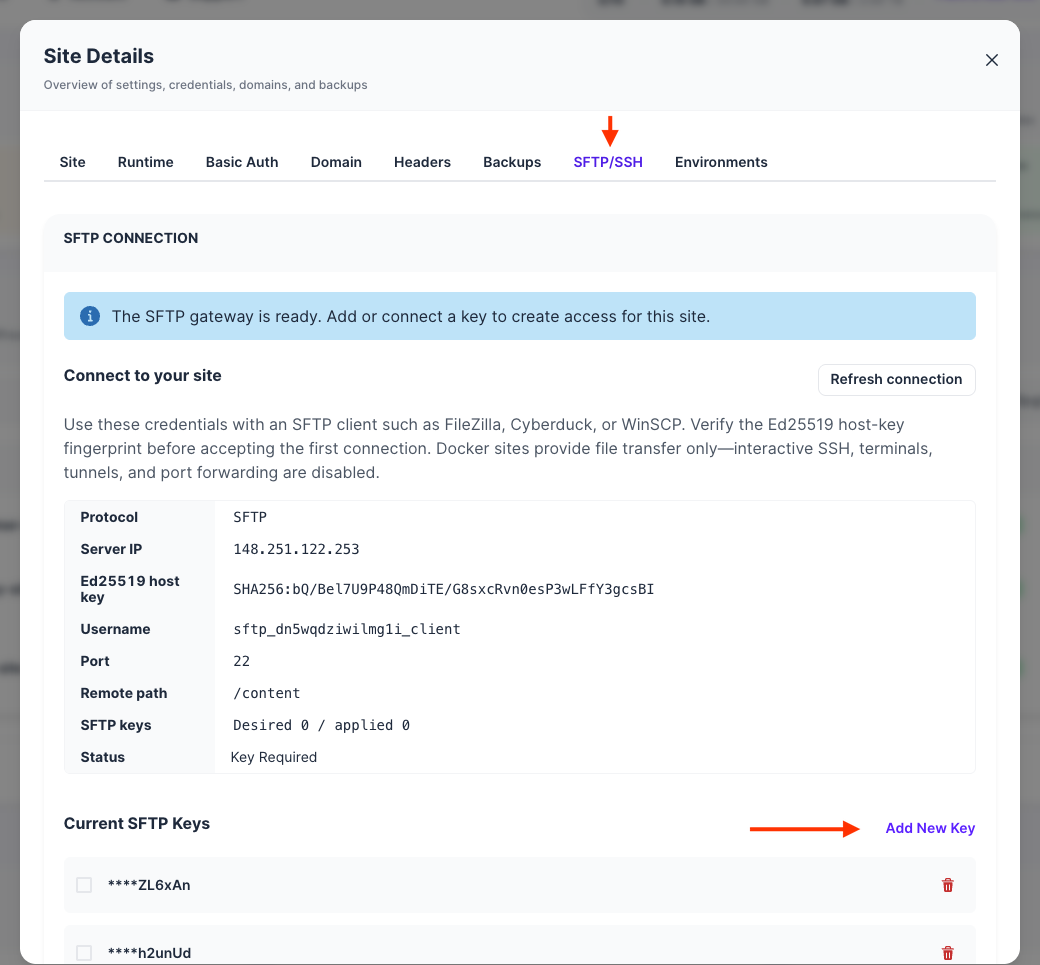
Open Site Details → SFTP/SSH to review a site's file-transfer connection and manage public-key access.
Managed Docker sites provide SFTP file transfer only. Interactive SSH shells, terminals, tunnels, and port forwarding are disabled, even though the settings tab is named SFTP/SSH.
Review the connection
The Connect to your site table shows the protocol, server address, Ed25519 host-key fingerprint, username, port, remote path, desired and applied key counts, and connection status. Use the values shown for that site rather than copying the example screenshot.
Use these details in an SFTP client. Compare the displayed host-key fingerprint before accepting the first connection. The status must show that access is ready; Key Required means you still need to connect a supported public key.
Add a public key to your account
- Under Current SFTP Keys, click Add New Key.
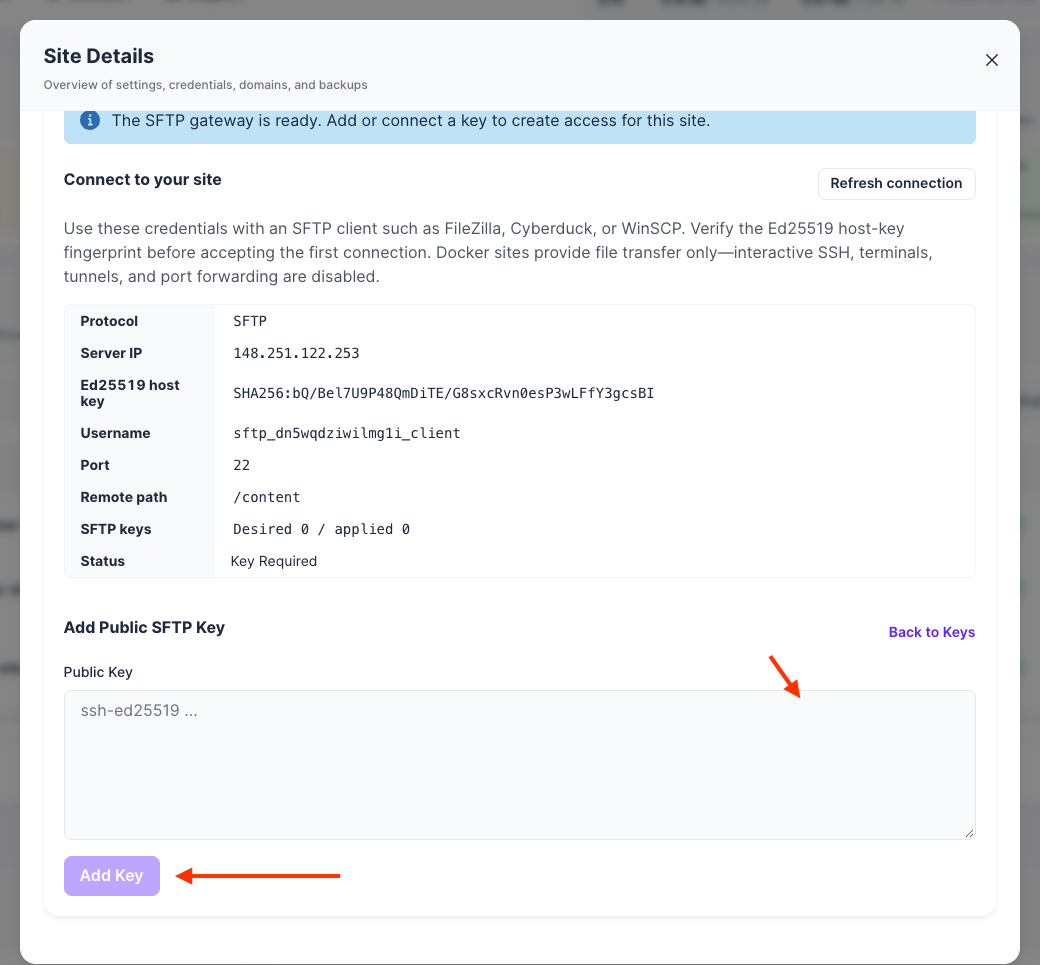
- Paste your public key into Public Key, then click Add Key.
- Use Back to Keys to return to the list.
Managed Docker SFTP accepts Ed25519, ECDSA P-256, and their supported security-key variants. A public key normally comes from your key pair's .pub file. Keep the private key on your own device; it is not the value to paste here.
Grant a key access to this site
Keys belong to your user account and are not automatically connected to every site. Select the checkbox beside a supported key to connect it to the current site. Wait for the desired and applied key counts and status to settle; use Refresh connection to reload the latest state.
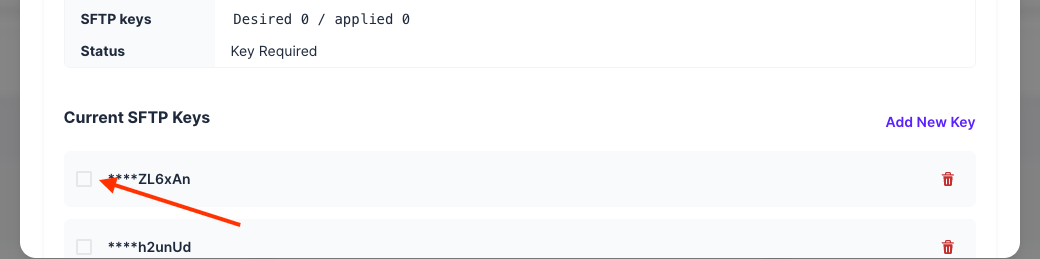
Once access is ready, connect using the site's displayed SFTP credentials and your matching private key. The remote path shown in the connection table is the starting location for file access.
Remove access or troubleshoot
Uncheck a key to disconnect it from this site. Wait until the change is applied before relying on access being removed. Deleting a saved key is a separate action that removes it from the account and connected sites; review its confirmation carefully.
If setup is still applying, allow it to finish and refresh the connection. Use Retry setup if Studio explicitly offers it after a failed setup. An active hosting subscription and sufficient site access are required to manage SFTP.
Before restoring a WordPress backup, disconnect all keys from the site and wait for SFTP access to be fully disabled.